Watched-node push setup
Get phone alerts when CoreScope stops hearing a watched node or hears it again.
Set up alerts in NodeScope
- Select your CoreScope analyzer in Settings and sign in under CoreScope Account.
- Open a node and choose Watch node. Your watch is saved to your account on that analyzer.
- Go to Settings → CoreScope Account → Watched-node alerts, select Enable push on this device, and allow notifications when prompted. Repeat on each device where you want alerts.
If your analyzer offers email alerts, you can still watch nodes and use Manage email alerts in CoreScope before push is enabled. Share this page with your analyzer administrator if push is unavailable.
Enable push in CoreScope
You need a CoreScope build that includes NodeScope Push, with user management and account notifications enabled. Set userManagement.publicBaseUrl to the analyzer’s public HTTPS address. For self-service enrollment, the relay must be able to reach that hostname on port 443 and fetch /api/nodescope/enrollment-proof without a login, redirect, or cached response.
- Sign in to your analyzer as an administrator and open Admin → Notifications → NodeScope Push.
- Select Enable. CoreScope proves control of its public URL and saves the enrollment credential on the server. Keep the credential file beside
users.dbon persistent storage. - When the card shows Connected, sign in to NodeScope on that analyzer and test an alert using a watched node.
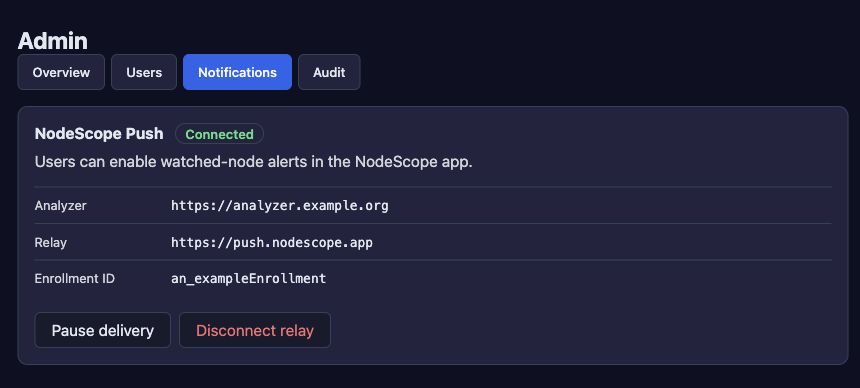
Pause delivery keeps device links and skips alerts generated while paused. Resume delivery turns on future delivery. Disconnect relay revokes a self-service enrollment. After reconnecting, users must enable push again. These controls leave email delivery in CoreScope.
How delivery works
- CoreScopeMonitors the nodes on your account’s watch list and detects changes using its packet feed and alert rules.
- NodeScope relayAccepts events from the enrolled analyzer and forwards alerts to Apple Push Notification service or Firebase Cloud Messaging.
- NodeScopeOpens the watched node when you tap an alert. If you’re looking at another analyzer, the app can offer to switch to the one that sent it.
CoreScope handles your account sign-in and email preferences. Email and phone push can be turned on or off independently.
Troubleshooting
- I only see email options
- Check that you’re using a push-enabled NodeScope build, signed in to the right analyzer, and that its admin card shows Connected. When push is unavailable, email can still work if CoreScope has it configured.
- CoreScope cannot verify the analyzer
- Check the public base URL and reverse proxy or tunnel. The relay’s proof request needs to reach the same analyzer instance that started enrollment.
- The node is missing or no alert arrives
- A new analyzer must hear an advert from the node before you can add it. Check the analyzer feed, the watch, and phone notification permissions. CoreScope pauses offline checks when the feed is stale. Its default offline thresholds are 72 hours for repeaters and rooms and 24 hours for other nodes.